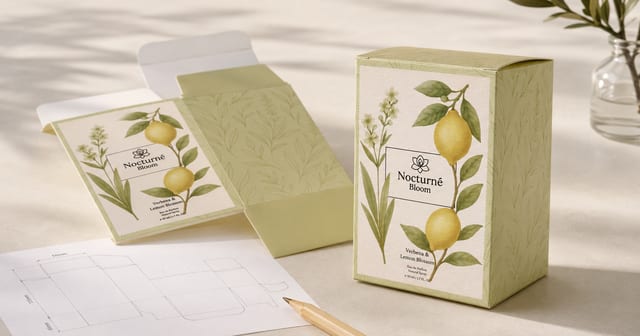
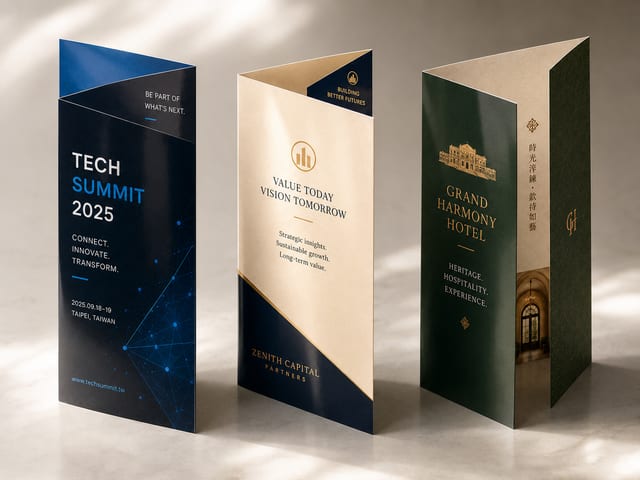
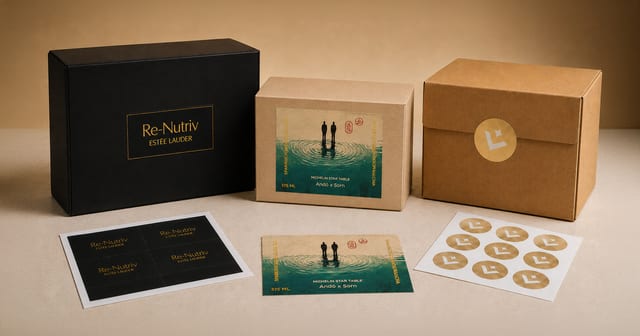
Plenty of Hong Kong SMEs, schools, event teams and designers hit the same wall: the artwork looks finished, then right before printing you discover the images are too soft, the type was never outlined, there's no bleed, or a finishing feature sits too close to the edge. Most of these are fixable — but fixing them eats into your delivery time.
Here's a practical print-file checklist to run through before you export a PDF, AI, PSD or any other design file.
Quick pre-flight checklist
If you just want a fast once-over, scan this table first. Spot a problem, then jump to the relevant section below to work through it.
| Check | What to confirm | Common problem |
|---|---|---|
| Size | Matches the size you ordered | Wrong size or orientation |
| CMYK | Prepared in print colour mode | RGB colours look too vivid, print differently |
| DPI | Sharp once placed at the actual size | Screenshots or social images blur when enlarged |
| Bleed | Added per the product's requirement | White edges after trimming |
| Safety margin | Text, logos and QR codes not too close to the edge | Trimmed off, or hit by holes and folds |
| Outlined text | Fonts converted to outlines | Font substitution, shifted text |
| Image links | Images embedded or supplied with the file | Missing images, low-res preview |
| Finishing | Foil, UV and die-cut marked on their own | Finishing misaligns or can't be produced |
First: is this file for viewing, or for printing?
A lot of file problems come from one misunderstanding: if it looks fine on screen, that doesn't mean it's safe to print. Social media graphics, PowerPoint images, WhatsApp photos or website screenshots can look crisp on a display, but turn soft once they're printed larger or placed on a cover.
If a design file is only for preview, lower resolution is fine. But a proper print file has to be built for the actual size, the material and the viewing distance. Before you submit, confirm three things: the real print size, the stock you're using, and whether there's any finishing.
If those three aren't settled, most of your file settings are just guesses. Scaling up, switching to a thicker stock or changing a finishing feature can all affect bleed, safety margins, image sharpness and delivery time.
CMYK: don't trust screen colour alone
Print files should generally be built in CMYK. Screen colour is usually RGB, which looks more vivid and brighter; once it's on paper, colour is affected by the stock, ink coverage, lamination, finishing and ambient light.
Bright orange, fluorescent green, purple, deep blue, brown and dark green in particular can shift noticeably once converted to CMYK. Don't treat screen colour as the final result — for a proper file, judge by print colour values or a physical colour sample.
Watch your blacks too. Small text — addresses, phone numbers, terms and conditions — should read cleanly, so avoid a heavy four-colour black there. A large black background can be handled as the design needs, but fine text in a multi-ink overprint can end up with edges that aren't crisp.
DPI: judge images at their actual print size
Image sharpness isn't about how big the file is on its own — it's whether it still holds up once placed at the real print size. Plenty of images look crisp on a phone or web page, then fall apart when scaled up onto a larger printed piece.
Check at 100% before you submit:
- Is the main hero image sharp?
- Do portraits, product shots and food photos have enough detail?
- Are the logo edges clean?
- Does the QR code still scan?
- Have any screenshots or social images been blown up too far?
If an image isn't sharp to begin with, forcing it larger rarely helps. The safer move is to swap in the original, re-export a high-resolution version, or adjust the layout so a low-res image doesn't sit in a hero position.
Bleed and safety margins: the cut won't land exactly where you picture it
Bleed exists to stop white edges appearing after trimming. General paper printing — cards, flyers, posters, postcards and so on — usually needs bleed added per the product's requirement. The most common approach is to extend the background, colour blocks or images past the trim line.
But note that not every product uses the same bleed rule. Some large-format or inkjet output, for example, may state on the product page that it doesn't need paper-style bleed, and is instead handled by actual size, a white border or the mounting method. So don't treat "3mm bleed on everything" as an absolute rule — follow the artwork requirement on that product's page.
Beyond bleed, safety margins matter just as much. Keep important text, logos, phone numbers, QR codes, prices and event dates away from the trim edge; and if there's punching, folding, perfect binding, stapling, ganging or a die-cut shape, keep clear of those finishing zones too.
Outlined text and image links: stop things shifting when the file is opened
A font on the designer's computer isn't necessarily on the machine that opens the file at the print end. If text isn't outlined, you can get font substitution, changed letter-spacing, different line breaks or a shifted layout.
Check before you submit:
- Is the text converted to outlines?
- Are images embedded, or the linked files supplied alongside?
- Is the logo a clean version, not a low-res screenshot?
- Have you reopened the exported PDF to check it?
- Are the page count, size and orientation correct?
If you only supply an AI or PSD but the linked images are missing, output can drop to a low-resolution preview, or lose images entirely. The simplest check is to export the PDF, open it fresh, and confirm the fonts, images, pages and positions all look right.
Finishing: don't bolt on foil, UV or die-cut at the last minute
Print finishing isn't a decorative sticker you can slap on at the last second. Foil stamping, spot UV, embossing, debossing, die-cutting, hole punching, folding, stapling and perfect binding all affect the structure of the design file.
For example, if foil or spot UV lines are too thin or the text too small, the real result may not read clearly; if a die-cut shape has overly complex lines, the finished piece may not achieve the detail you pictured; and if a book or perfect-bound product runs content too close to the spine, part of it can be hidden by the binding when read.
So ask early in the design stage: does this piece have any finishing? Where does it go? Does it need its own layer, cut lines or a process file? The later you decide, the more likely you'll have to re-lay out the artwork.
Production time: leave slack for complex finishing
Printing isn't a single button press. Even with a clean file, it still goes through proofing, payment, imposition, production, finishing, drying, packing and delivery or self-collection. The larger the product, the bigger the quantity and the more complex the finishing, the more slack you need to leave.
The principle from an earlier piece still holds: the higher the quantity, the lower the average unit price usually is; the more finishing, the higher the production time and cost tend to be; and special stocks, special processes and the run-up to holidays all need extra lead time.
For event materials, school open days, exhibitions, weddings, festive gifts or a company opening, don't leave submission to the last day or two. Even when the print time looks like enough, any single revision, missing image, colour issue or finishing confirmation can make the schedule very tight.
Final print-file checklist before you submit
Before you formally submit, run through this list:
- Size matches the size you ordered.
- File is prepared in CMYK.
- Images are sharp at the actual size.
- Important text has enough safety margin.
- Products that need bleed have it added per the requirement.
- Text is converted to outlines.
- Images are embedded, or supplied with the linked files.
- QR codes have been test-scanned on a phone.
- Finishing, cut lines, white-ink and foil areas are clearly marked.
- The PDF has been reopened and checked — no missing images, shifts or page errors.
FAQ
What matters most before submitting a print file?
The most important items are size, CMYK, image sharpness, bleed, safety margins, outlined text and image links. These directly affect whether the job can run smoothly.
Does every print product need 3mm bleed?
Not necessarily. Many paper products require bleed, but some large-format output, inkjet printing or special materials may follow a different artwork approach. The safest bet is to prepare to the artwork requirement on the product page, rather than applying one rule to everything.
Do images have to be 300dpi?
300dpi is a common print reference, but it really depends on the product size, viewing distance and output method. Cards, flyers and close-read materials usually need to be sharper; large-format output is judged by its actual size and viewing distance.
Why outline the text?
Outlining prevents font substitution, shifting or line-break changes when the print end doesn't have the same fonts. Before you submit, keep an editable master, then export a separate print file with the text outlined.
Can I add finishing after the design is done?
Sometimes, but it's riskier. Foil, UV, die-cut, punching, folding and binding all affect the layout and file setup, so it's best decided early in the design stage.
Can I just supply a PDF and print it straight away?
It depends whether the PDF was exported to print requirements. If the size is correct, the images are sharp, the text is embedded or outlined, and the bleed and safety margins are right, it's usually easier to handle. But if the PDF was exported straight from Word, Canva, PowerPoint or a web image, you still need to check the size, resolution, colour mode and bleed settings.
Ready to submit your print file?
Before you submit, sort out your size, purpose, material, finishing requirements and deadline, then check the file against the list above.
If you just need a quick file check or fix, take a look at our design service fees.
If it's business-card details to lay out, see business card artwork setup.
If it's flyer content to typeset, see flyer design.
We deliver across Hong Kong and Macau. If you'd like us to sanity-check a file before it runs, message us on WhatsApp at +852 3001 5678 — English is fine.