We get this question all the time at Printing Banana: how do I design my own business card and end up with a file that's actually ready to print? After some digging, our team settled on one online design platform that works reasonably well for print — so you can put together a card you like without ever opening professional design software.
We've written before about what to watch out for when designing a card, but if you've never used design software, learning it from scratch is a tall order — and there's no guarantee you'll end up with a card you're happy with.
Canva is a solid online design tool, and here's why we recommend it over the alternatives: once your card is finished, Canva can export a PDF with bleed directly on the platform. Most tools can't do that, and for print it matters enormously. If you're not sure what happens without bleed, this article explains it:
Print Basics: A Closer Look at Bleed — With a Bleed-Setup Tutorial
Below we'll walk through designing a card in Canva step by step. It isn't a print-first platform, though, so there are a few things you'll need to keep an eye on to get a card that's genuinely print-ready.
Step 1: Choose the right size
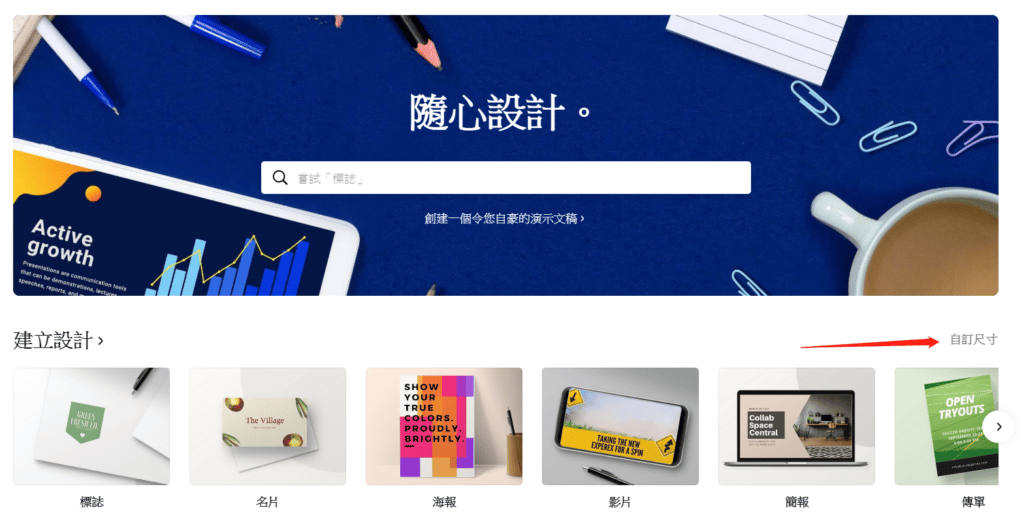
After logging into Canva, choose Custom size and enter 90 x 54 mm, the standard card size here (note that changing the size once you're already inside a design requires a paid membership). You might wonder why we pick a custom size instead of the "Business Card" preset. It's because Canva is an overseas tool, and the card size used abroad (85 x 55 mm) differs from the one we use locally — so a custom size is the safer choice. Your card doesn't have to be exactly 90 x 54 mm; anything within 90 x 54 mm is essentially the same price in the trade. Go over 90 x 54 mm, though, and it's charged at double, so be careful.
Step 2: Search for a card template
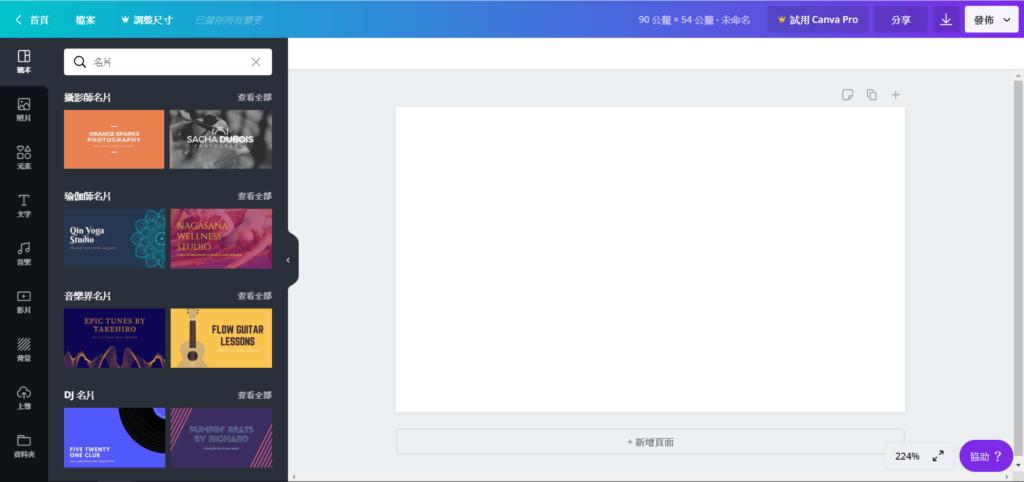
Once the size is set, you can start designing. Type "business card" into the search bar and you'll find plenty of templates to use — Canva has a wide range of card designs, so there's bound to be one or two you like. Pick a design and simply drag it onto the blank canvas. Remember that a card has two sides, so be sure to add a second page.
Step 3: Design your card content
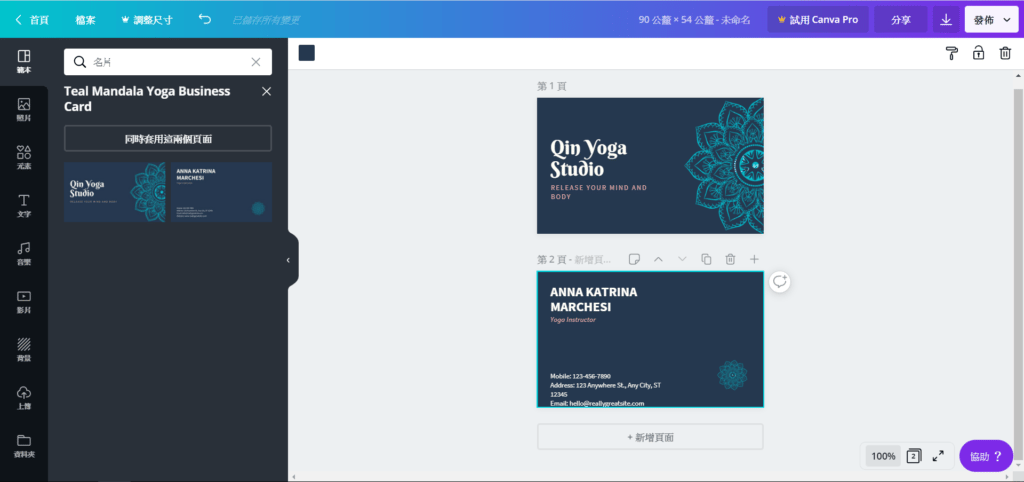
With the layout in place, you can adjust and edit the text, add your logo, move the background image, and so on. One important tip: never place text or key images right at the edge of the card. During production those areas can get trimmed off, so keep text and important images well inside the safe zone.
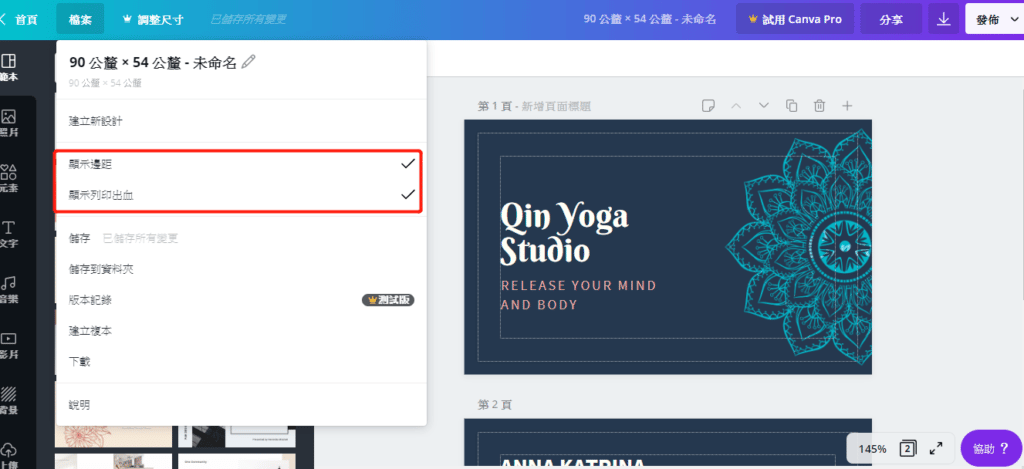
Canva doesn't give you a tool to precisely measure distances within your design, but there's a reference you can rely on: in your file, turn on "Show margins" and "Show print bleed". As long as your text sits inside the "Show margins" guide, you'll generally be fine. And if you're adding your own background image, remember to stretch it all the way to fill the canvas.
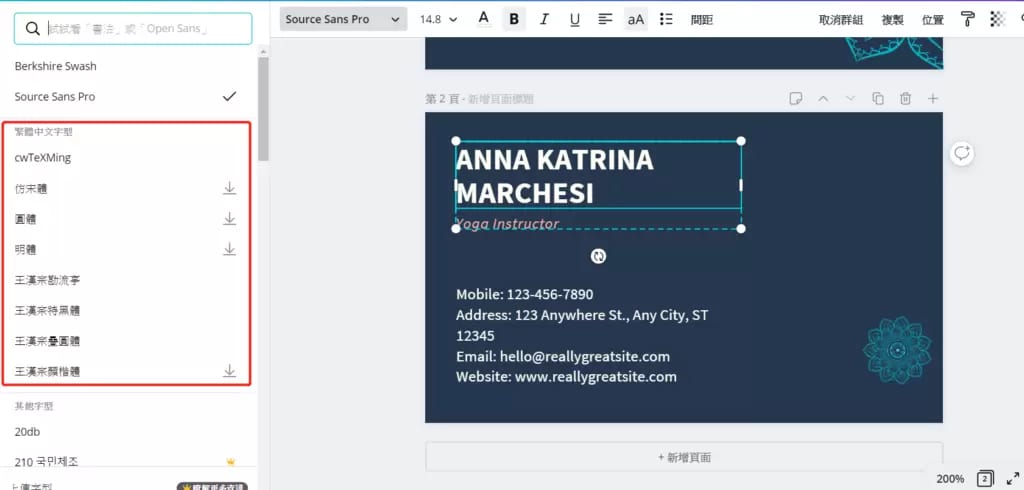
Since cards here almost always use Chinese characters, I'd suggest setting the language to Traditional Chinese so you don't have to hunt for Chinese fonts among a pile of others. For an overseas tool, having Chinese fonts available at all is already pretty good.
Step 4: Export as a PDF
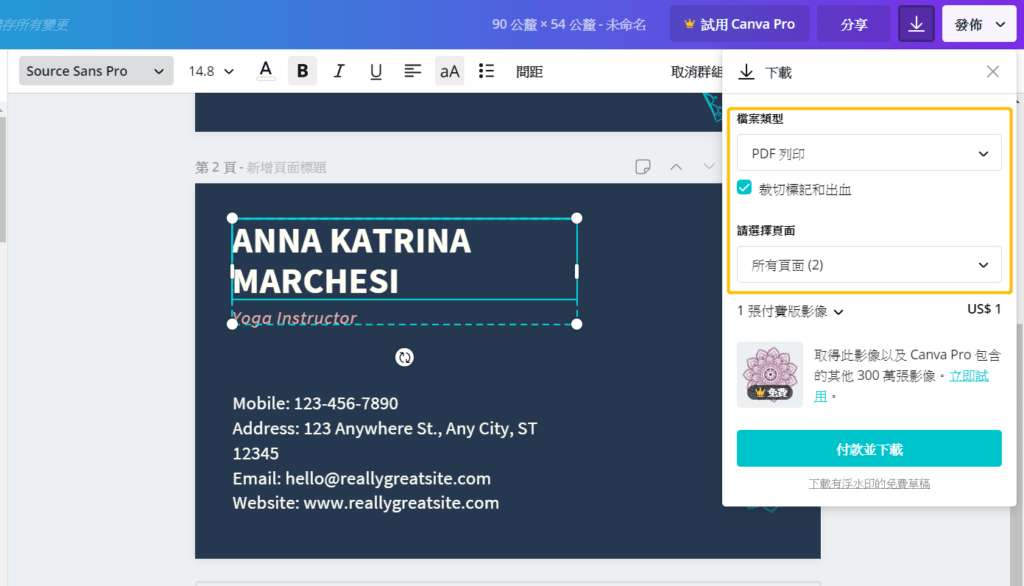
Once the whole card design is finished, click the Download button in the top-right corner. For file type, choose "PDF Print" and tick "Crop marks and bleed" — and your card design is done. Note that some images in Canva aren't free, so keep an eye out for that while you design; if one really suits your card, we'd encourage you to pay for it.
After a successful export, you can send the PDF to your printer. One thing to keep in mind: cards designed in Canva export in RGB, while printing uses CMYK. Because of that colour conversion the card's colours will shift, and it may print in colours different from your design. On colour specifically, we recommend checking with your printing company before you print.
Once your card is designed, of course you'll want to print it — you can choose the paper stock and finishing that suit you. We deliver across Hong Kong and Macau, and if you'd like a hand checking your file before it goes to press, just WhatsApp us at +852 3001 5678 (English is fine). For all the options, browse Printing Banana business cards.