What are superscript and subscript?
Superscript and subscript are special characters set smaller than the surrounding text and shifted off the baseline of a normal line of type — subscript sits below the line, superscript above it. You'll most often see them in equations, mathematical formulas, chemical compounds and isotopes.
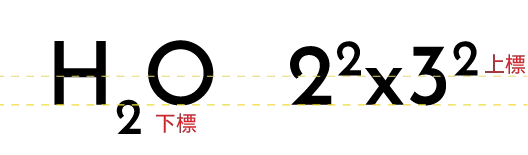
How to set superscript and subscript in Adobe Illustrator
To add a superscript or subscript to text in Adobe Illustrator, you make the adjustment in the Character panel.
To open the Character panel, click your text box, then click Character (next to the font selector), or use the keyboard shortcut Control-T.
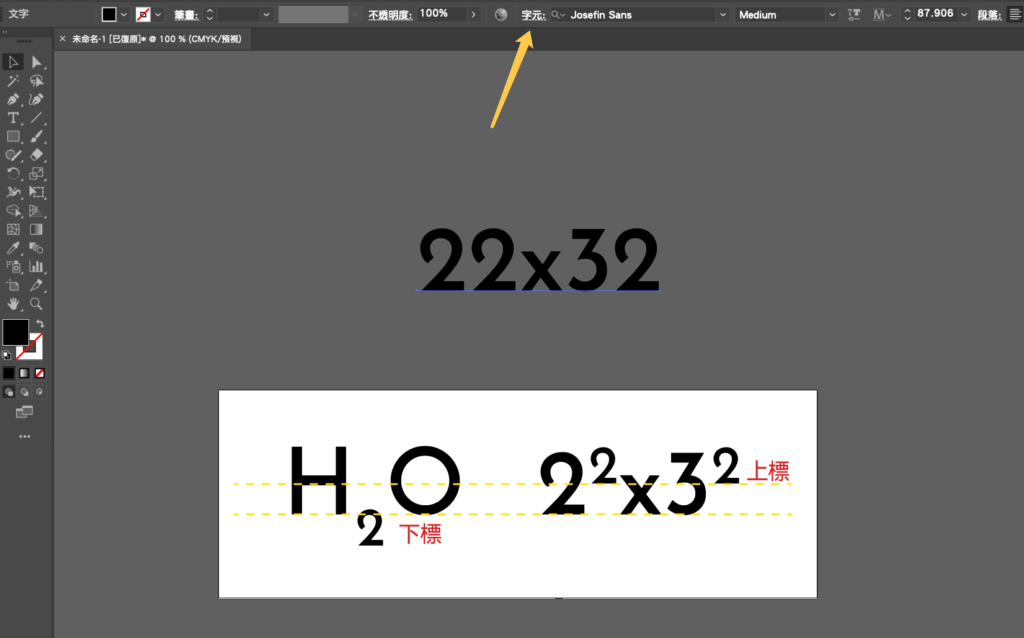
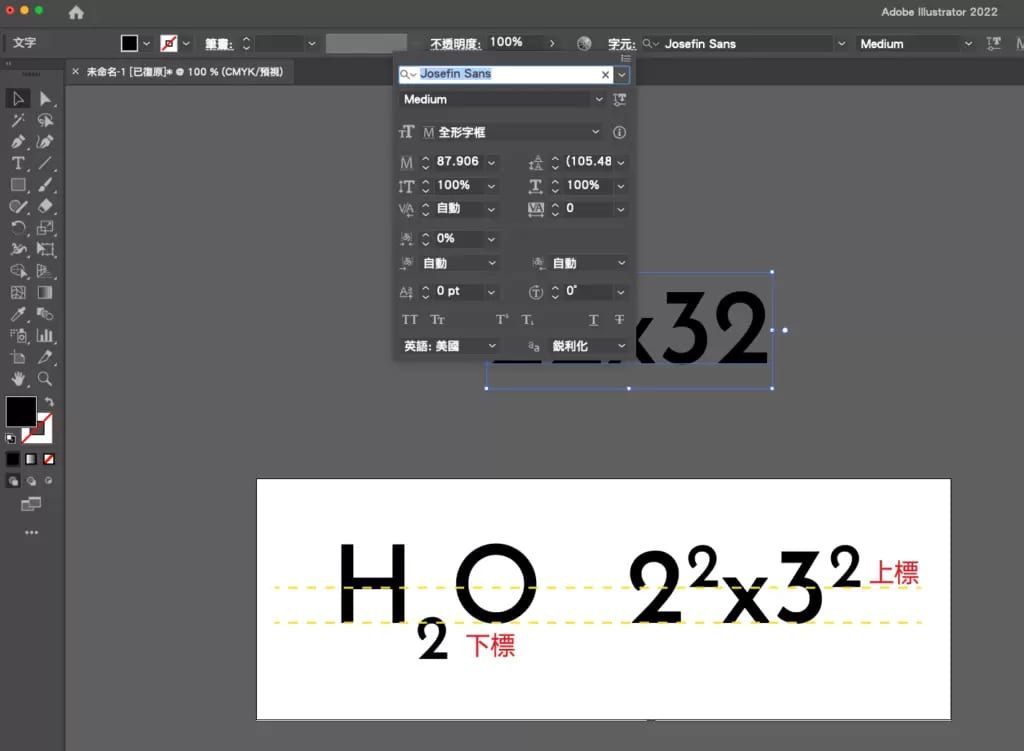
Near the end of the panel you'll find the buttons that control character size. The middle two are superscript and subscript. First select the text you want to convert, then click the superscript button — the one showing a small 2 above the T.
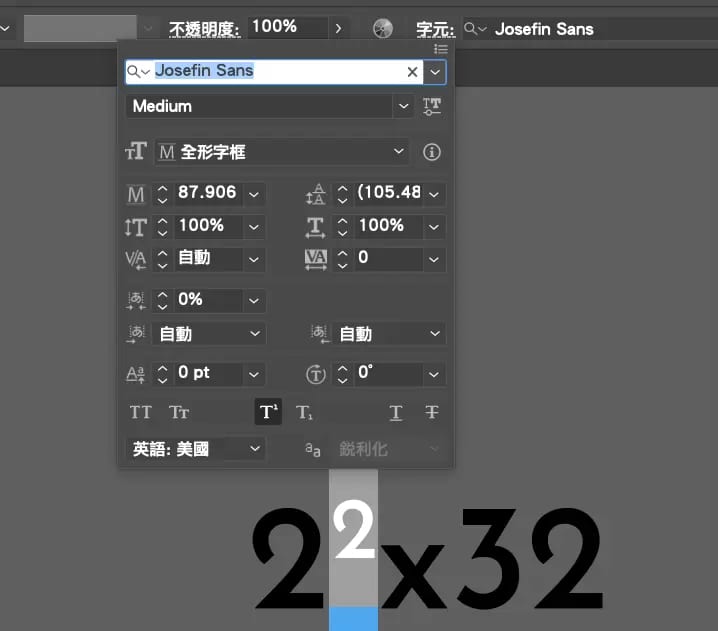
Subscript is the button right next to superscript. The result looks like this:
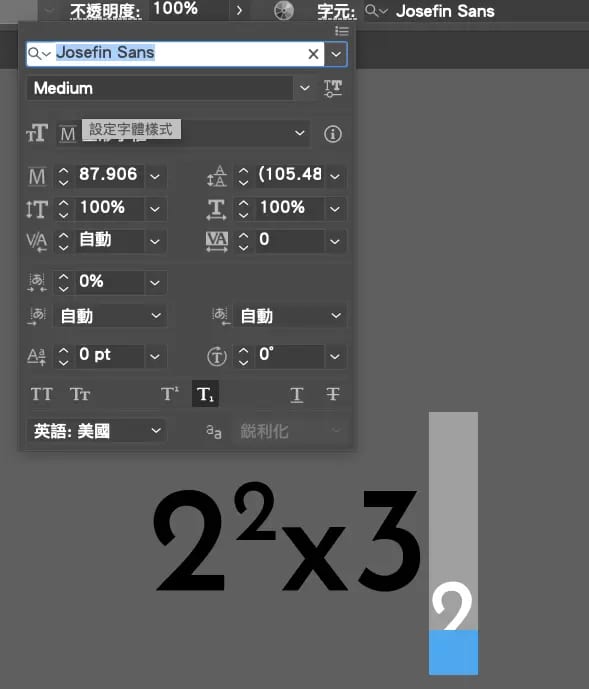
Changing the size of superscript and subscript
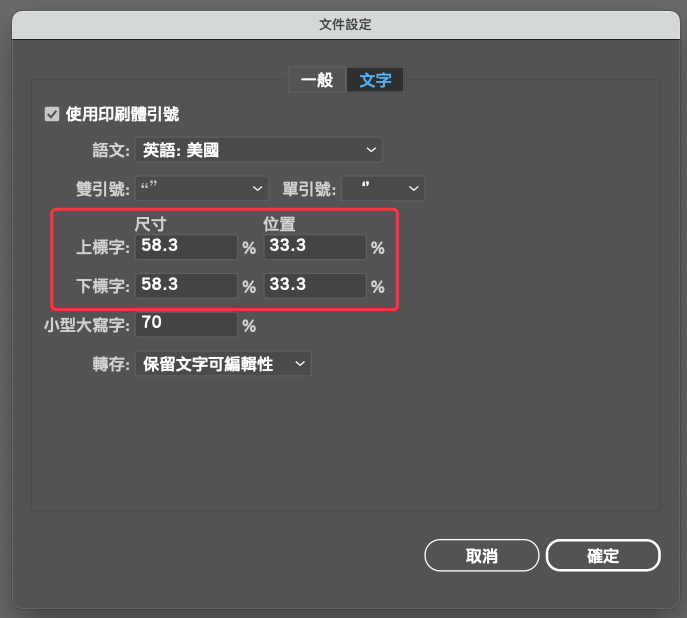
You normally won't need to change the size of your superscript or subscript, but if your design calls for it, Illustrator lets you adjust it. Open File > Document Setup, then select Type in the dialog. From there you can easily change the size and position of the superscript and subscript characters.
Other design questions?
Have another design or print-file question? We're happy to help. Message us on WhatsApp at +852 3001 5678 (English is fine) — we answer printing and artwork queries and deliver across Hong Kong and Macau.