What Is WeTransfer?
WeTransfer is a handy upload tool that saves you a lot of time. Print and design files are almost always hundreds of megabytes — often more than a gigabyte — which is well beyond what email attachments or chat apps can comfortably handle. After plenty of testing, we have found WeTransfer performs well for Hong Kong users on both upload and download. It offers two ways to share: grab a download link right on the site, or have the download link emailed to your recipient.
The interface is clean and nicely designed, with no clutter and no unnecessary buttons. The most thoughtful touch is the first-run walkthrough — just follow the prompts and you will be up and running in no time. Send a large file to a colleague or your printer and you never have to worry about attachment limits or painfully slow transfers over messaging apps.
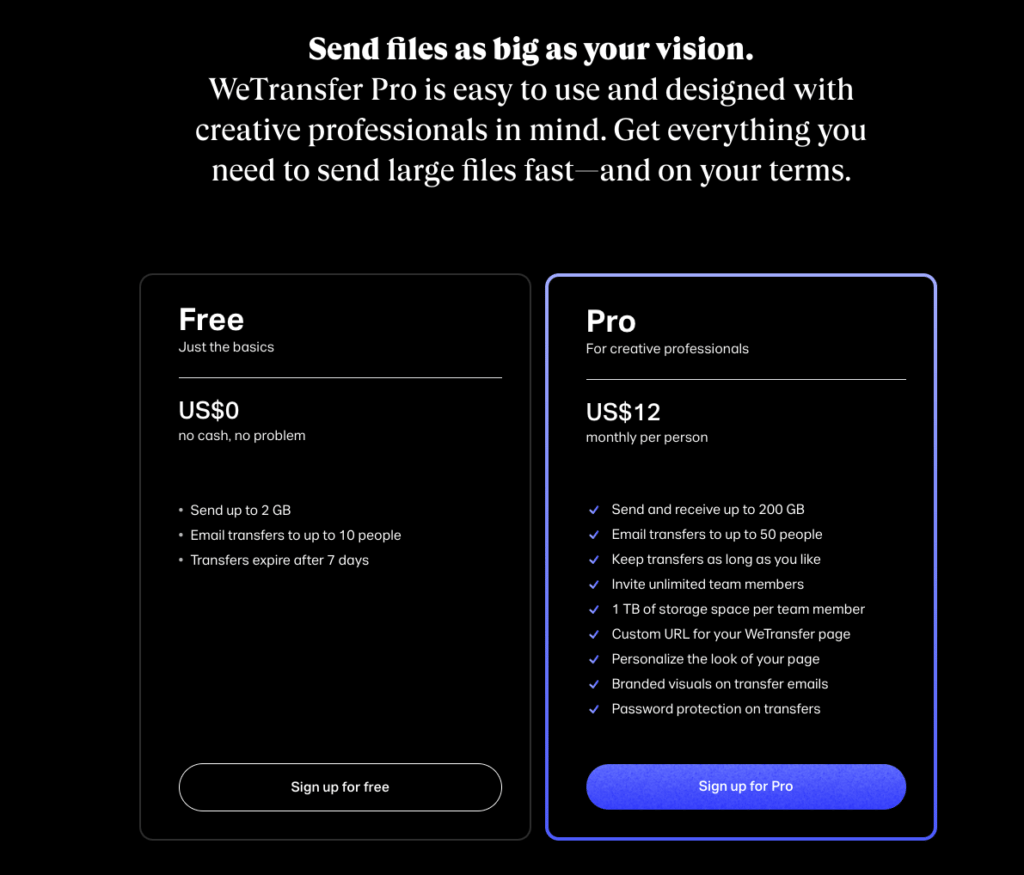
WeTransfer comes in Free and Pro tiers; the difference is the per-file size cap and how long your files are kept. The Free plan lets you upload a single file of up to 2GB, keeps it for 7 days, and lets you send to 10 email recipients at once. After 7 days the file is automatically removed from the server. Going Pro raises the per-file limit to 200GB and stores up to 1TB of files permanently, right up until you cancel.
How to Use WeTransfer
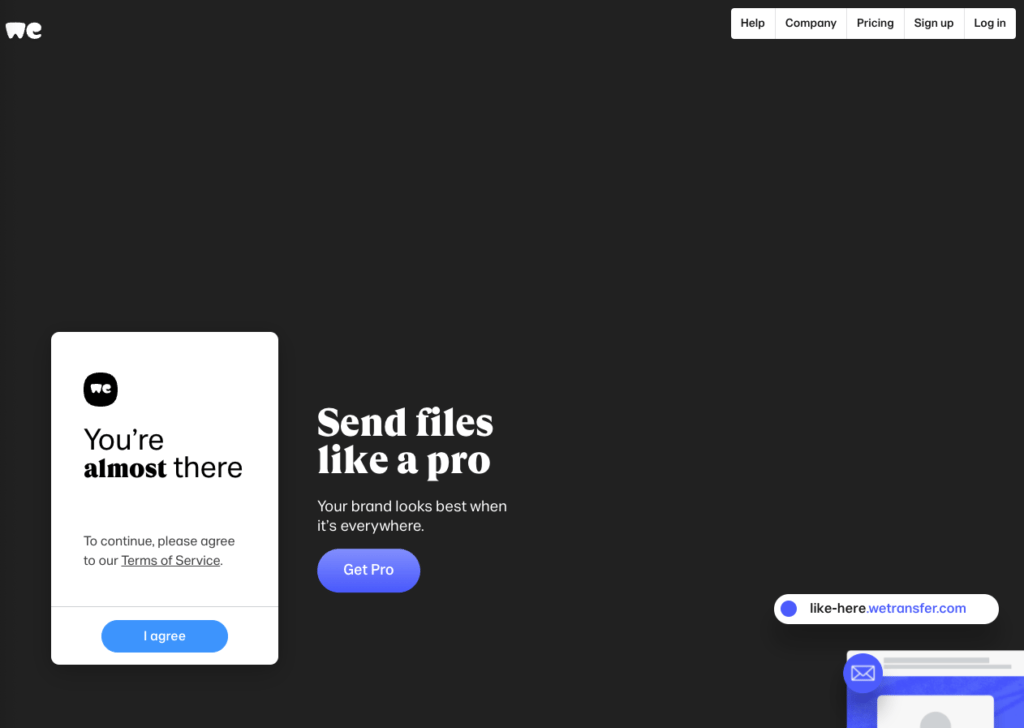
💁🏻♀️ Step 1 — Agree to the terms
When you open WeTransfer, a prompt appears first: you have to accept the site's usage rules and privacy policy before you can use it. Once you click "I Agree", you are ready to go.
If you visit WeTransfer a few times, you will notice the background image changes on every visit — and the longer you linger, the more it reveals about that photo or design.
💁🏻♀️ Step 2-1 — Send the download link by email
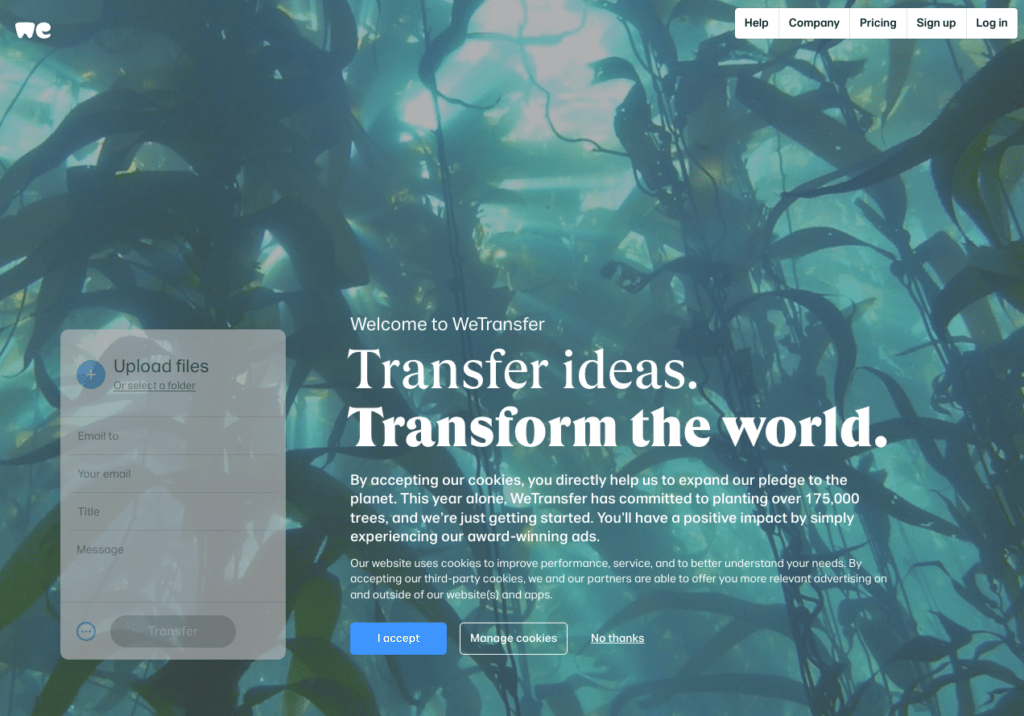
Once you have accepted the terms, you land on the page below, which emails the download link to your recipient.
- Click "Add your files" to add the files you want to send. Remember, a single file can be no larger than 2GB.
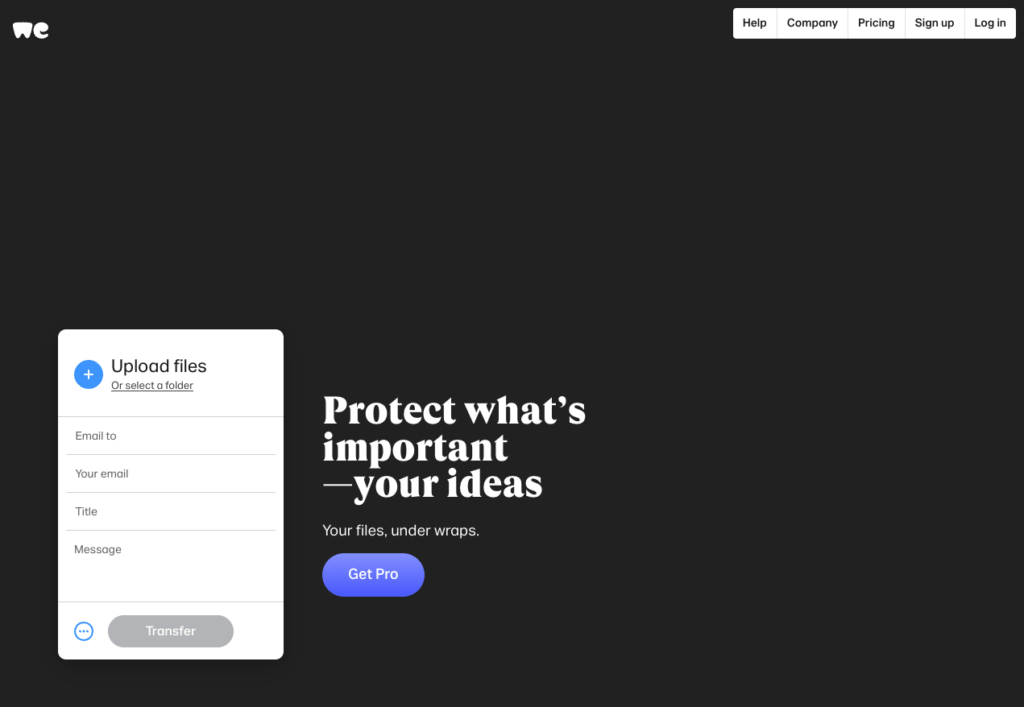
- Once your files are selected, fill in the recipient's email, your own email, and any message you want them to see (if you are sending to Printing Banana, just include your order number).
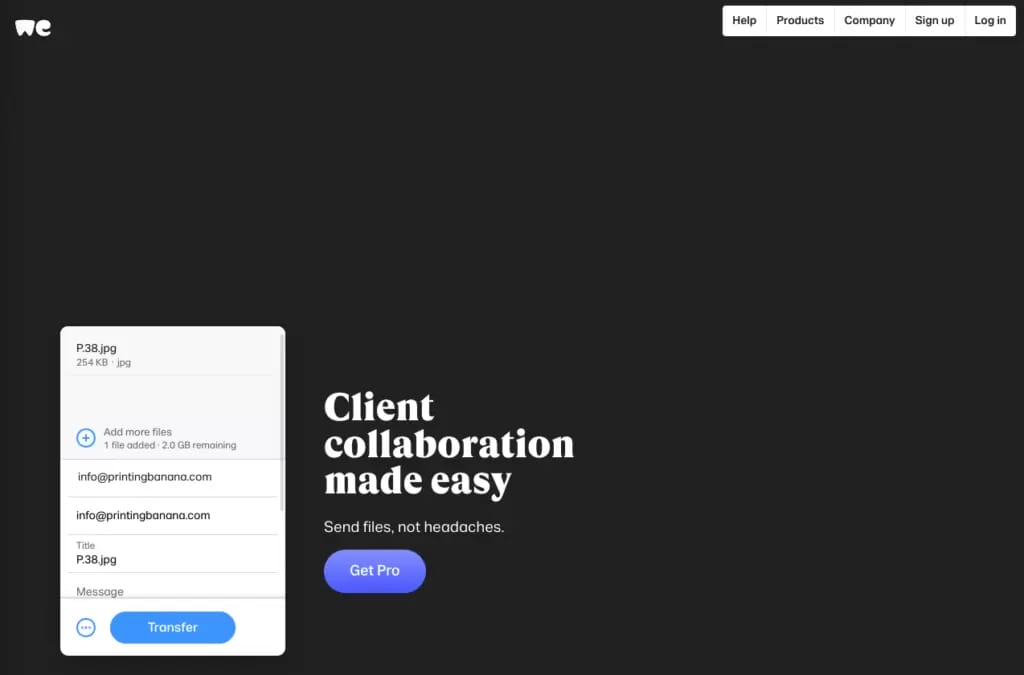
- Click Transfer.
- Receive the verification code by email.
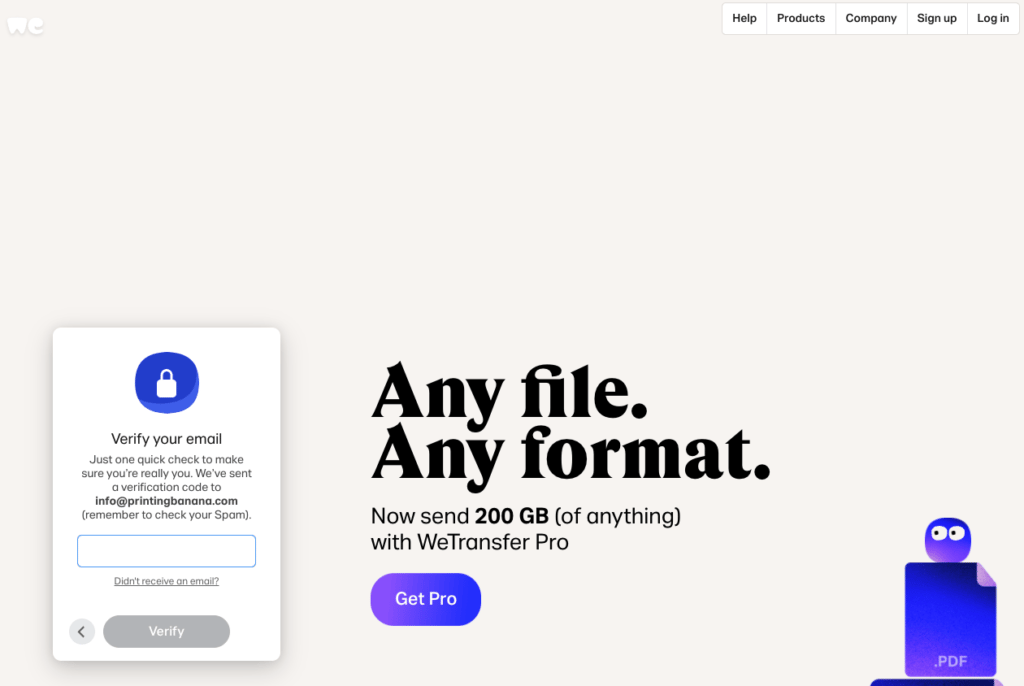
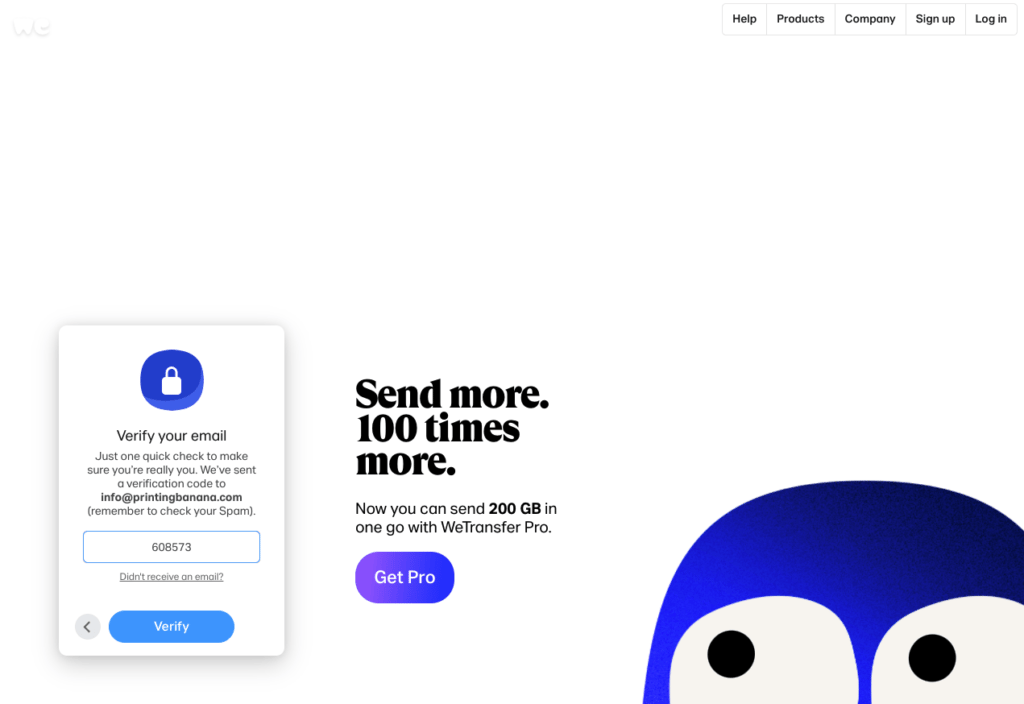
- Once the upload succeeds, WeTransfer automatically emails your recipient. So you can put info@printingbanana.com in the recipient field to send it straight to us for the next step.
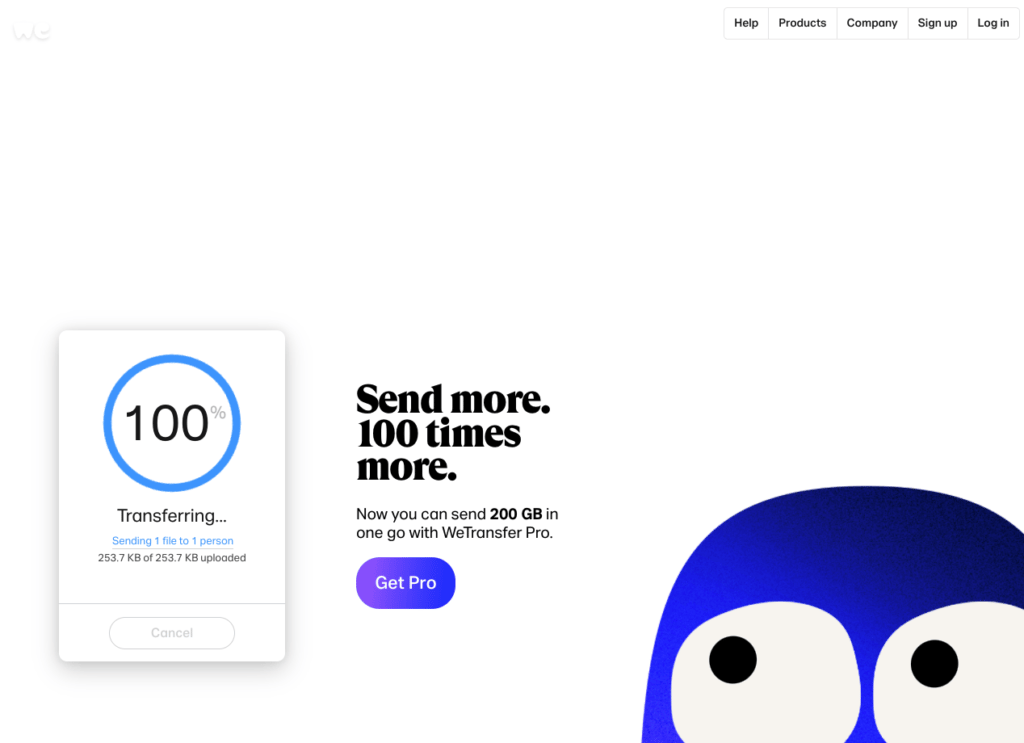
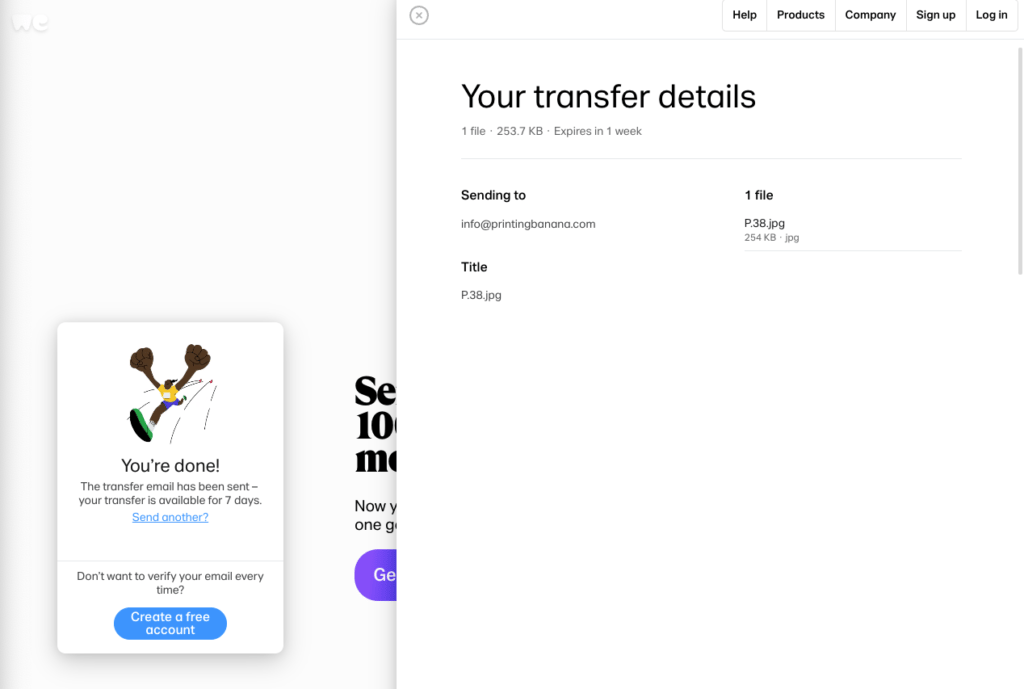
💁🏻♀️ Step 2-2 — Get a download link
Prefer a shareable link over email? Click the three dots at the bottom-left and choose "Get transfer link". That switches to link mode, where anyone who has the link can download the files — even easier to forward than an email.
- Click the "settings" button at the bottom-left, then under "Send as" choose "link".
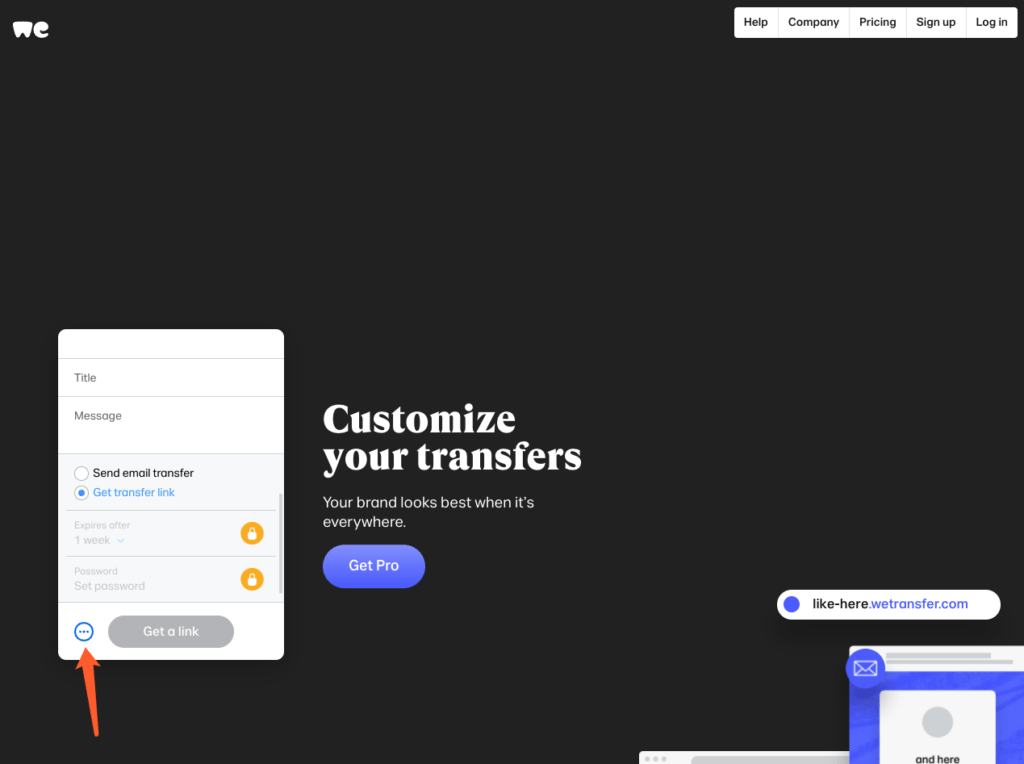
- Upload your files and add a message (if you like).
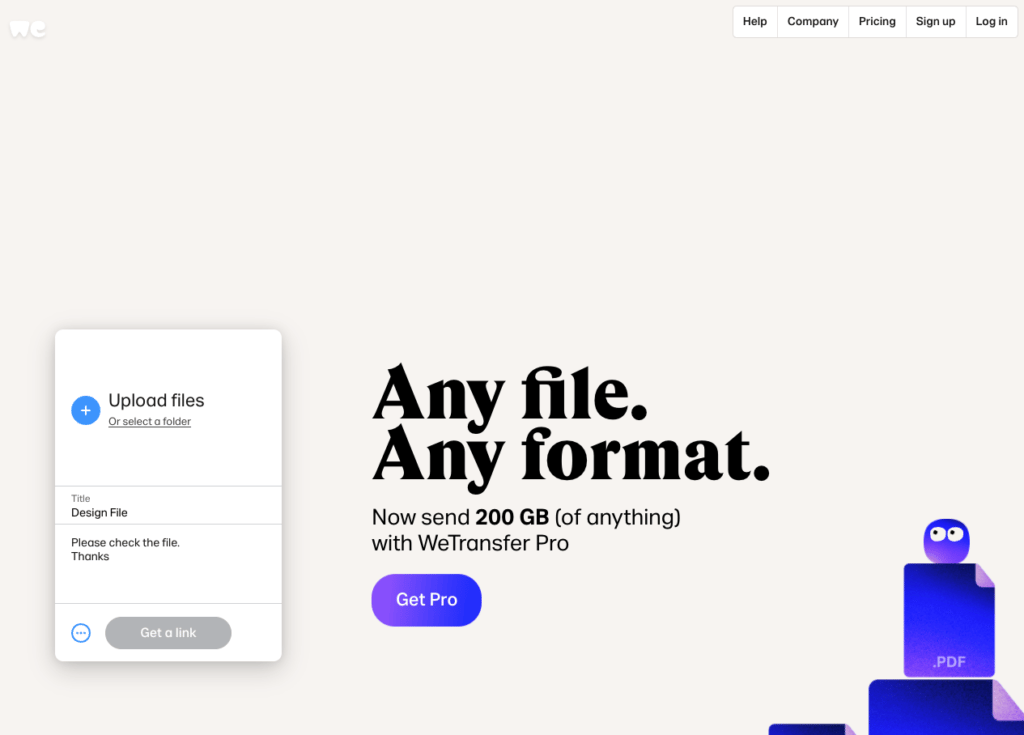
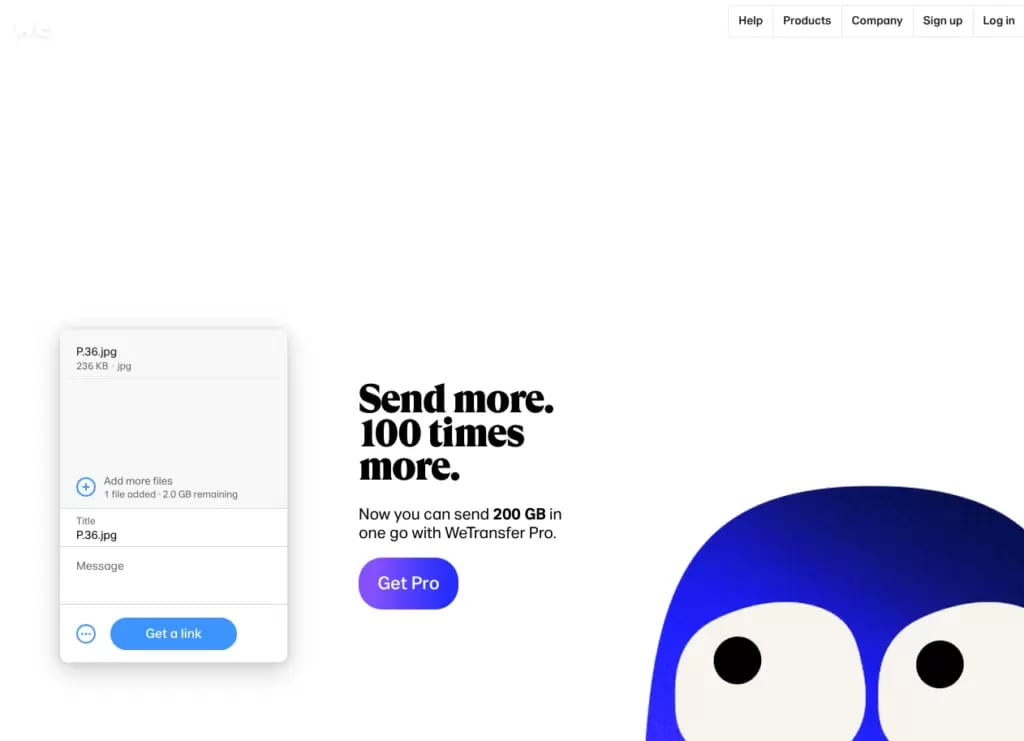
- With your files selected, click "Get a Link" to upload them.
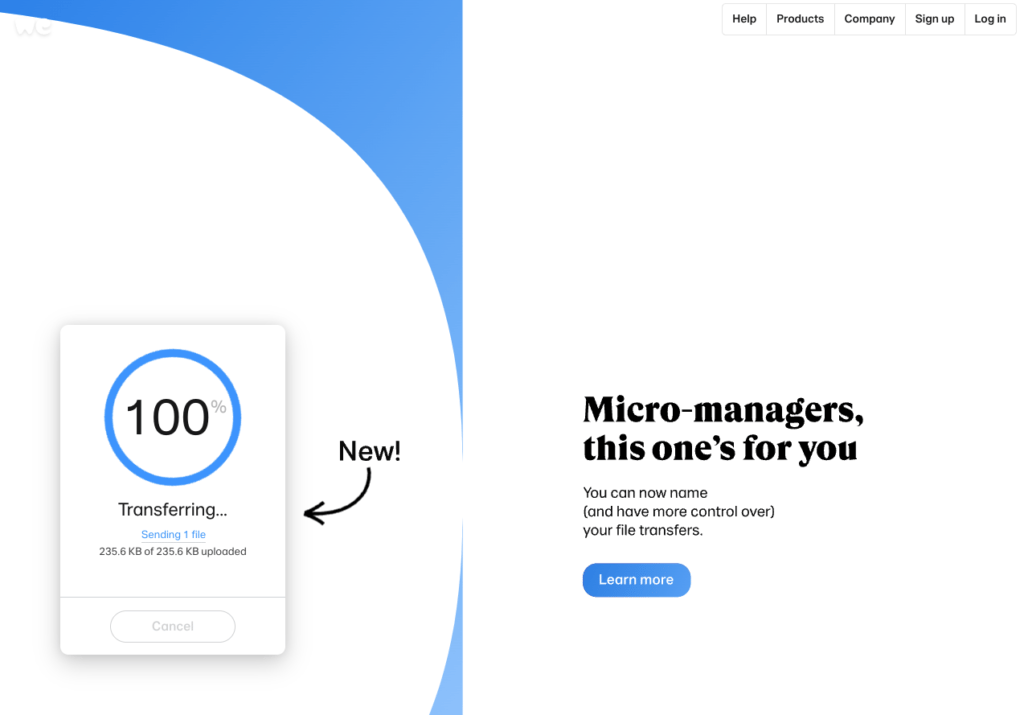
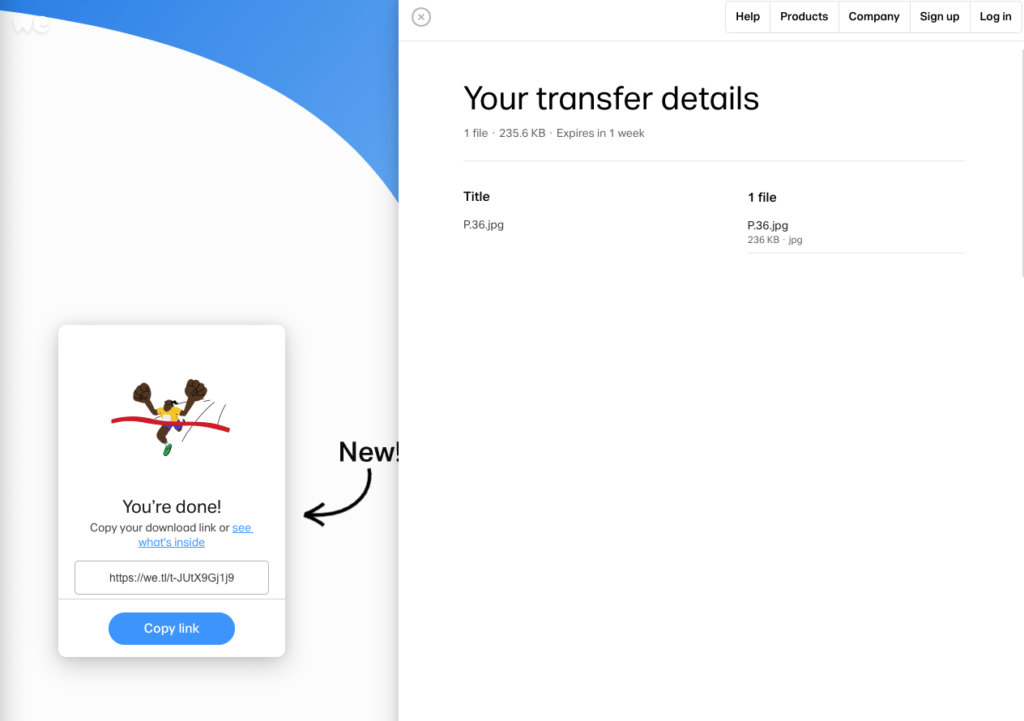
- Once the upload succeeds, you get a download link right on the site that you can forward over WhatsApp, Messenger and other chat apps — for example, WhatsApp it to our Printing Banana customer team at https://wa.me/85230015678.
Our Verdict
In everyday use, WeTransfer works much like other free file-sharing services — but its best trait is that there are no ads, and it does not cap free users' download size or speed. Some sites throttle you on purpose, reserving full-speed downloads for paying members only.
WeTransfer is refreshingly fair here: there are very few restrictions in normal use, and it never pushes you to upgrade. That said, if you regularly move very large files, we do recommend going Pro for the 200GB transfers and 1TB of cloud storage.
Get Your Print Files Ready
Once your print files are ready, send them over with WeTransfer and we will take it from there — we will help you proof the artwork and move it into production. Sharing your design files with us up front makes it far easier for us to spot any issues, help you fix them, and print the result you are after. We deliver across Hong Kong and Macau, and you are welcome to WhatsApp us at +852 3001 5678 (English is fine) if you have any questions.