Barely a day goes by without a Printing Banana specialist opening a design file and spotting the same problem: the fonts were never outlined.
We constantly remind clients to create outlines before they export a print file, yet even designers we have worked with for years still slip up on this one.
What does "create outlines" mean?
Outlining converts your live text into vector shapes. Once the text is outlined successfully, you no longer have to worry about error messages when the print shop opens your file.
Why do you need to outline your text?
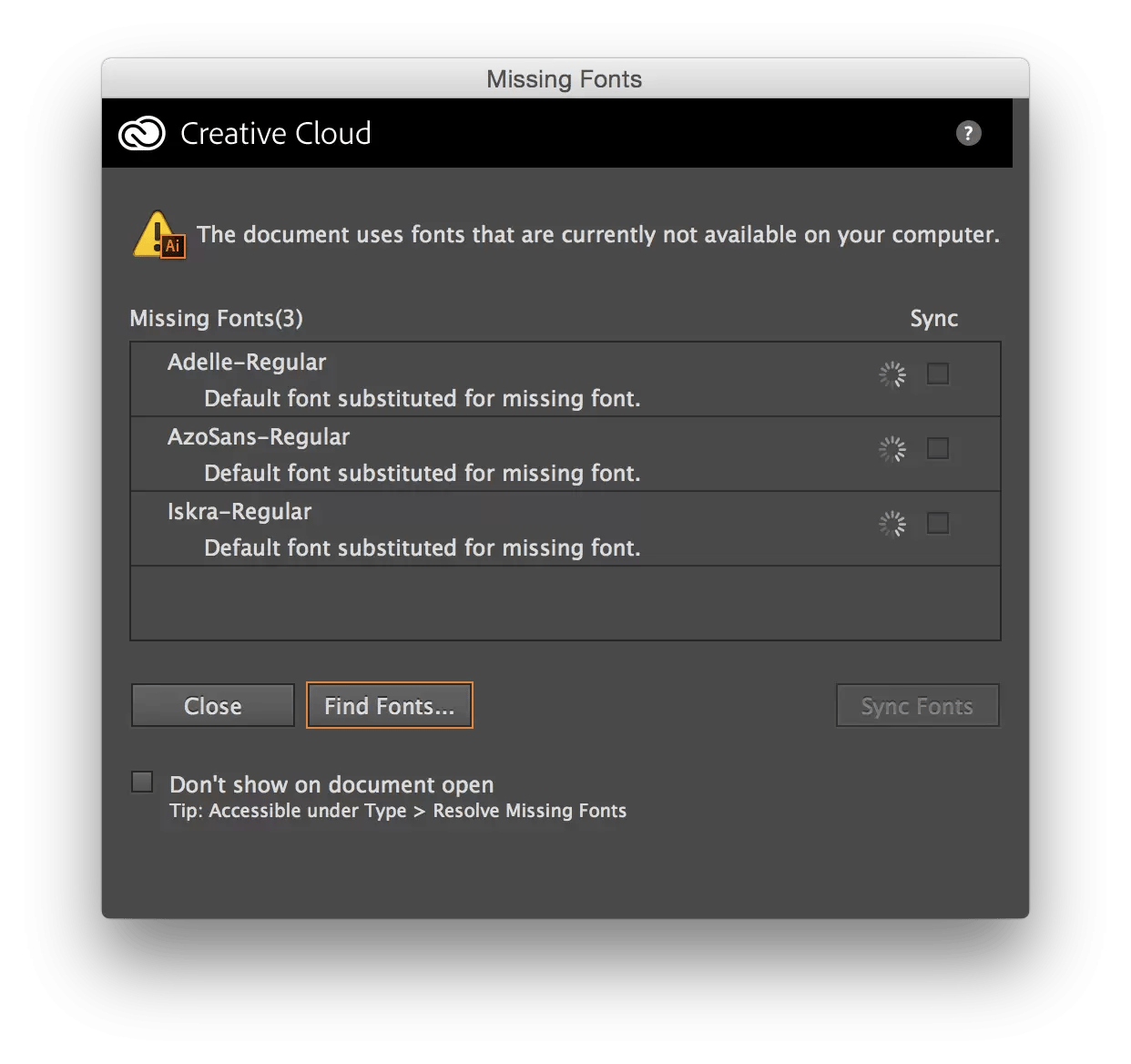
- A print shop is not a type foundry — it does not own every font. If the text is not outlined, the system may swap your font for another one automatically.
- Outlining turns your text into artwork, which stops the print shop from accidentally altering the wording.
- Once outlined, anyone who opens the file sees exactly the same lettering.
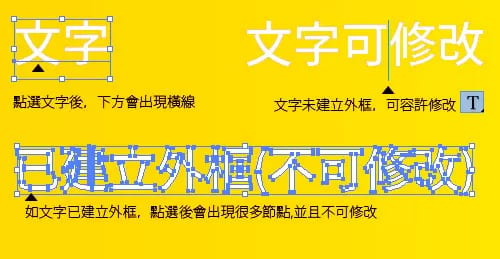
Print straight from a problem file and your typeface can turn into something else entirely, or even shift out of place. So to make sure the printed type is the typeface you actually chose, always remember to outline your text.
Whenever you build a flat print file — a business card, a poster, a flyer or anything else, in any software — keep this in mind: if it has text, that text must be rasterised into shapes. Apart from the fonts already built into the operating system, every other font is one the user installed themselves. When a designer uses a font the print shop does not have, the print shop's computer cannot recognise it and substitutes another typeface, so the printed text no longer matches the original. Most print shops will flag a problem file and ask the client to outline it — but it is far quicker to do it yourself first.
So how do you create outlines?
To "create outlines" in Adobe Illustrator:
- Select the text.
- Press Ctrl+Shift+O (Mac: Command ⌘ + Shift + O), or right-click and choose Create Outlines.
In Photoshop:
- Select all the layers.
- Right-click and choose Flatten Image.
Finally, save the file as a new copy or export it as a PDF, and it is ready to send to your print shop for production. Send the outlined PDF over to Printing Banana and we handle the rest, with delivery across Hong Kong and Macau. Questions before you export? WhatsApp us at +852 3001 5678 — English is fine.