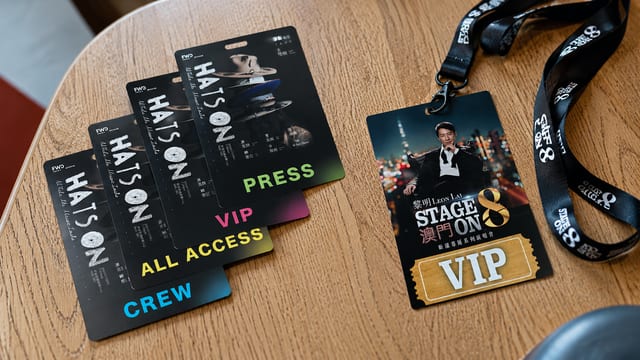
Not every QR code survives the trip from screen to paper. Shrink it too far, drop the contrast, or over-complicate the link, and a printed QR code simply won't scan — and a code that won't scan makes the whole piece pointless. The number that matters most is the minimum print size. Here's how small a QR code can go and still work, plus how to handle contrast, complexity, and even foil or embossing.
QR code print limits
- Minimum size. The smallest a printed QR code should be is 15 × 15 mm. Go below that and there's a real chance it won't scan. If the code carries a lot of data — a denser grid of modules — enlarge it to 20 × 20 mm to lower the risk of scan problems.
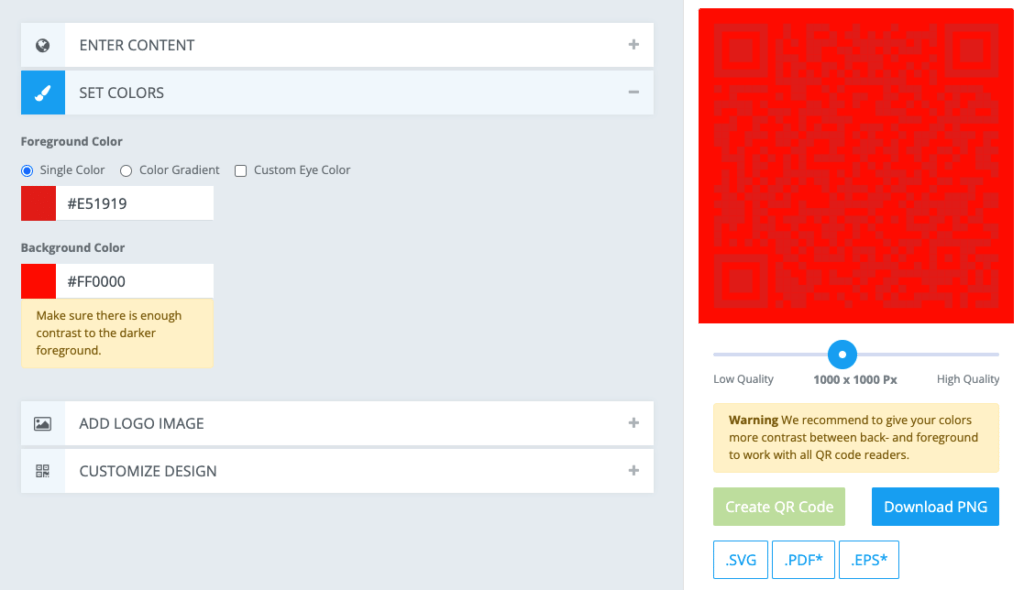
- High colour contrast. To read a QR code, a scanner has to pick out the individual modules. If the contrast between the modules and the background is too low, it becomes very hard to read — as in the example below.
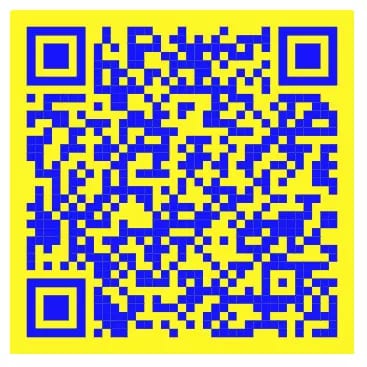
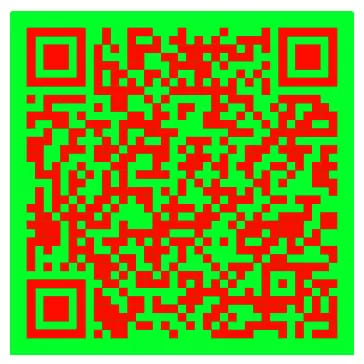
Ideally, design with a strong contrasting pair — blue on yellow, red on green, or classic black. Try scanning the two QR codes below to feel the difference contrast makes.
- Complexity. How complex a QR code turns out depends on the length of the link it encodes: the longer the link, the busier the code. A very complex QR code isn't suitable for print finishing, because all those fine modules push past what the finishing process can hold.
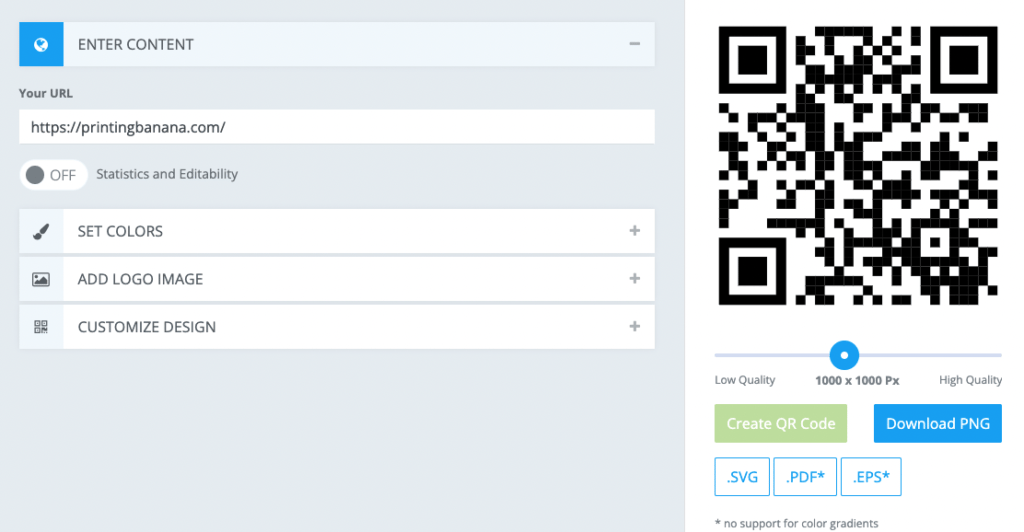
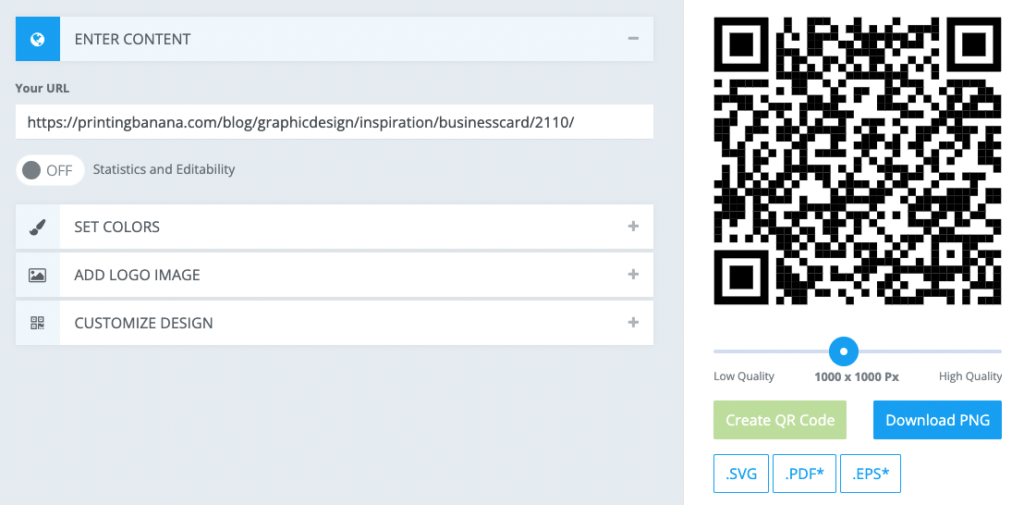
Tip: before sending artwork to the printer, test-scan the code on screen first. If you have a printer at the office or at home, print it at 100% and scan the physical copy — that's the most reliable check.
How to generate a QR code
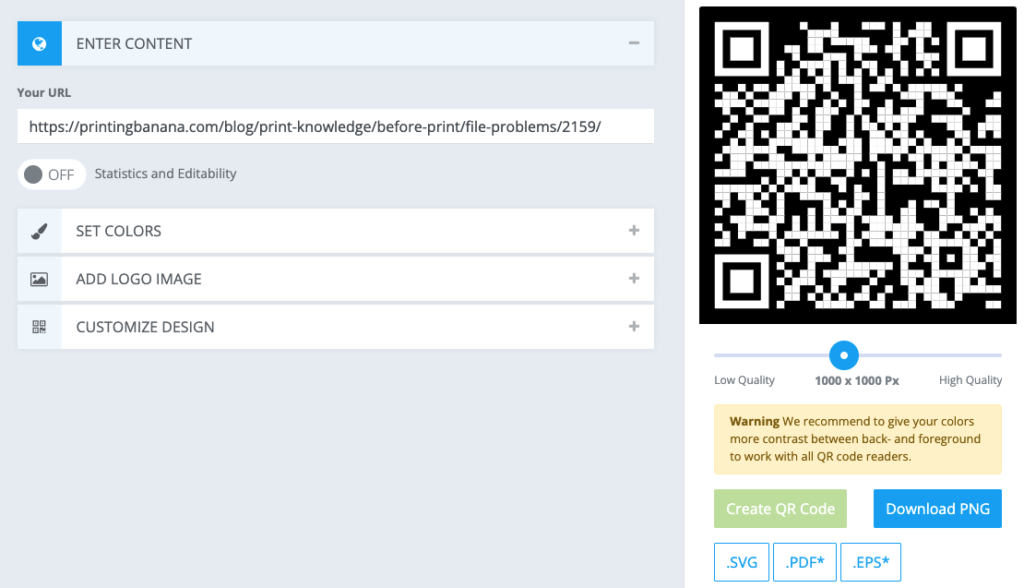
There are plenty of free QR code generators online. We recommend QRCodeMonkey — alongside URLs, plain text, and email, it can turn all sorts of other content into a QR code. Have a dig around the site to see what's on offer.
As a print shop, though, the real reason we recommend it isn't the feature list — it's that you can export SVG / EPS vector files. With an SVG or EPS on hand, you never have to worry about the code going blurry when you scale it up or down.
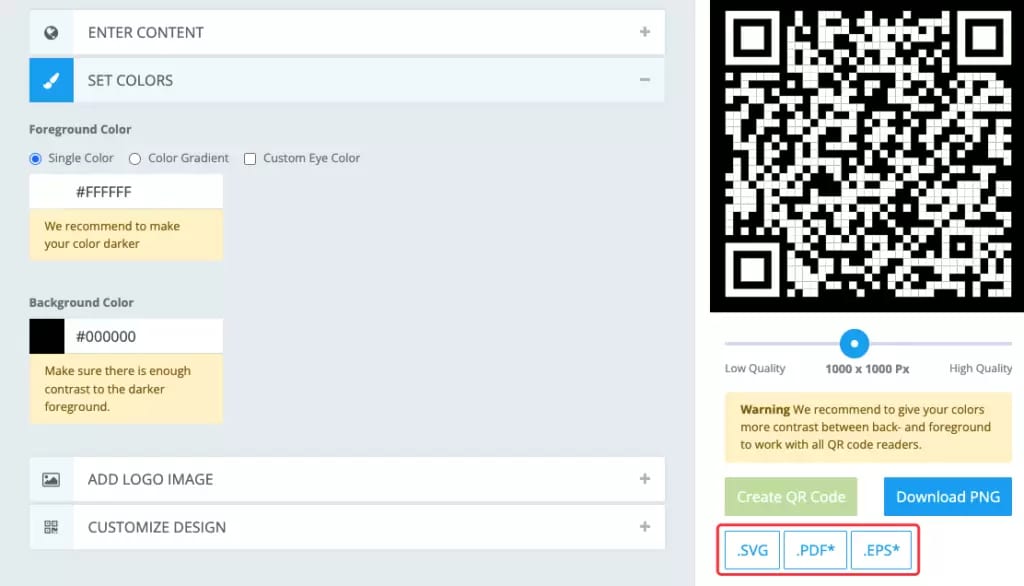
The simpler way to build a QR code
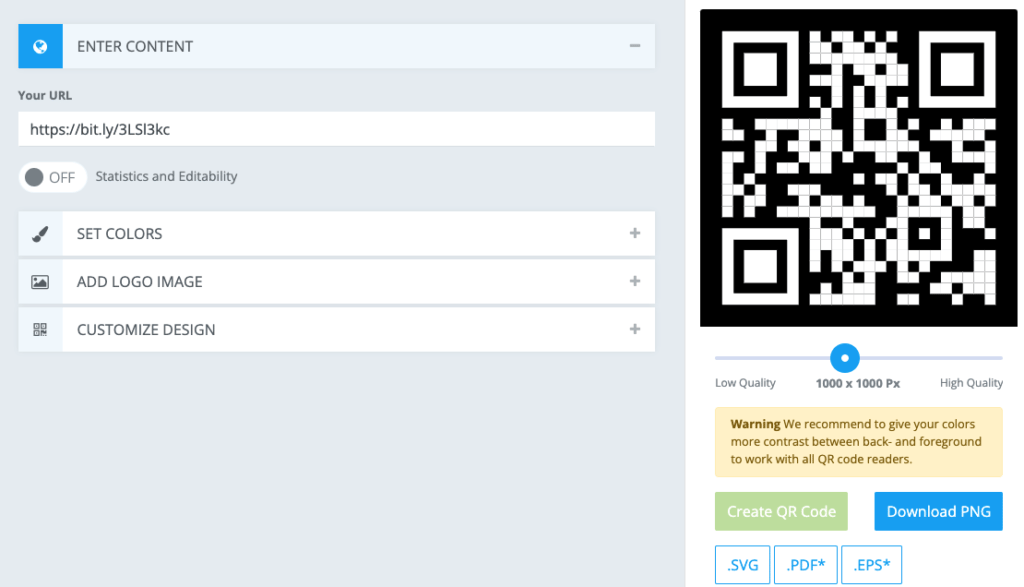
As mentioned above, if you want a simpler code, just shorten the URL. Use Bitly to trim the link down, so even a very long original URL is no problem. Bitly can also track how many people scanned the code — handy data if you want to measure results.
Can you foil or emboss a QR code?
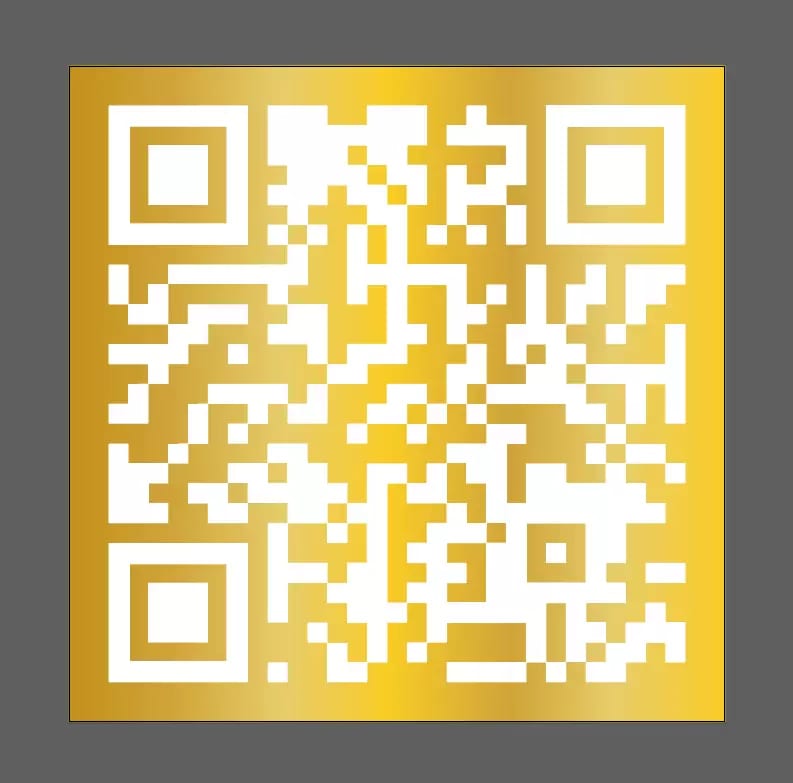
Foil stamping and embossing are both basically fine. That said, the foil artwork has to be set up as reverse foil, and you can't foil the module grid itself — only the outer frame can take the foil.
What can a QR code do on a printed piece?
- Link to your company website.
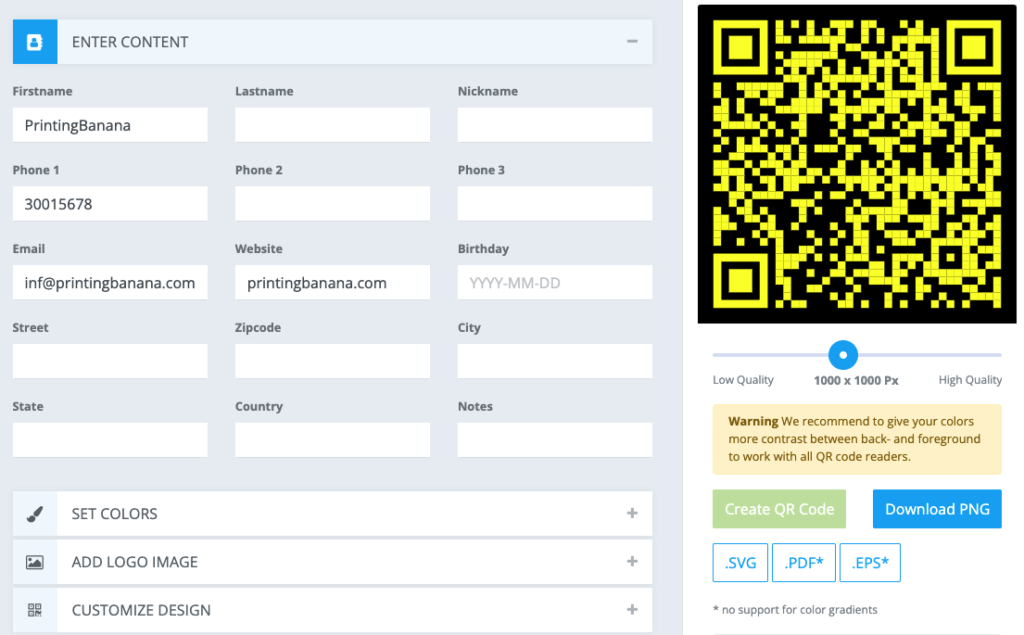
- Share contact details. In QRCodeMonkey, choose MECARD, fill in all your details, and when someone scans the code your contact info saves straight to their phone.
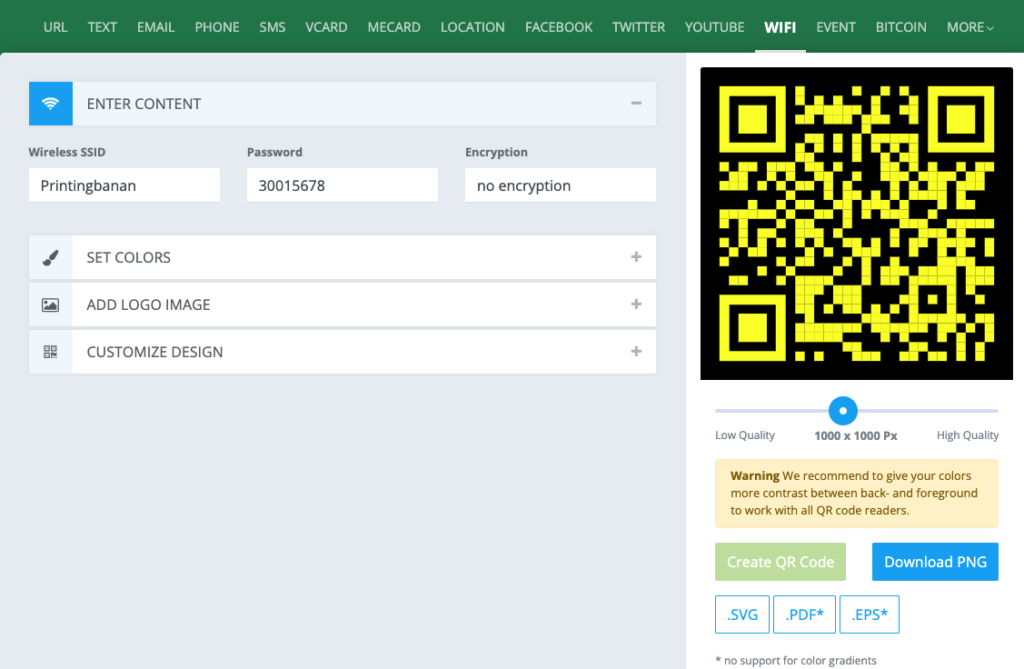
- Share your WIFI. If you run a restaurant or venue, you probably get asked for the WIFI password all day long — a QR code solves that too, and you can set it up in QRCodeMonkey as well.
Put QR codes to work and simplify the complicated
QR codes have been around for years, yet not many people realise how powerful they are. Get to know the tool and it can take a real chunk out of your repetitive work.
Just remember, before you print, confirm the QR code is fit for print — and if you want any finishing, check first that it falls within the limits. Printing across Hong Kong and Macau? WhatsApp us at +852 3001 5678 (English is fine) and we'll help you check that your QR code will still scan after foil or embossing.